 By theo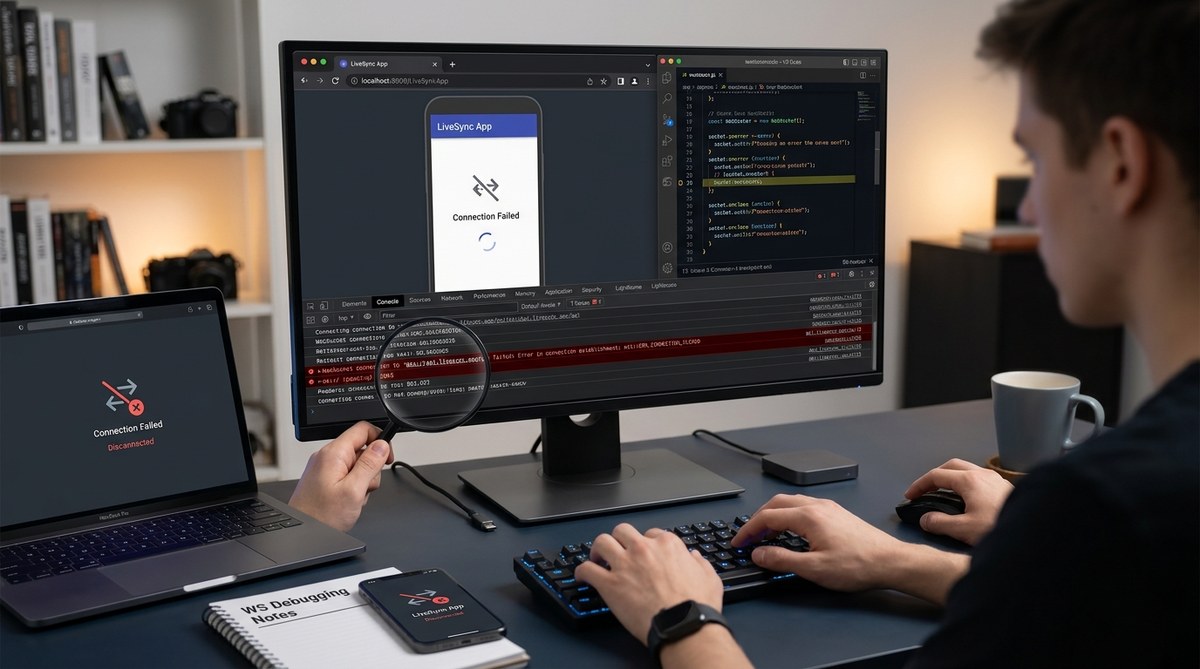
You are building a Progressive Web App that relies on WebSockets for real time updates. Everything works fine on localhost. Then you deploy to production and the WebSocket connection dies after a few seconds. Users complain about missing notifications, stale data, and random disconnects. You check the Network tab and see a red status with 1006 or 1011. Sound familiar?
WebSocket failures in PWAs can be frustrating because the error messages are often vague. But with a structured approach you can find the root cause fast. This guide will show you exactly how to debug WebSocket connection failures in PWA apps, from browser DevTools to server logs.
To debug WebSocket connection failures in a PWA, start by inspecting the WebSocket handshake in the browser Network tab, then check for TLS and proxy issues. Use the service worker to log connection states, and enable server side tracing. Common culprits include idle timeout, load balancer misconfiguration, and unhandled reconnection logic. Always test with Chrome DevTools and Wireshark for packet level analysis.
Why WebSockets Behave Differently in PWAs
Progressive Web Apps run inside a service worker, which adds a layer between your JavaScript and the network. The service worker can intercept requests, cache responses, and even modify headers. When a WebSocket connection is attempted, the browser first checks with the service worker. If the service worker does not forward the Upgrade header correctly, the handshake fails with a generic error.
Another factor is the app lifecycle. PWAs can be backgrounded or hibernated. If your WebSocket is not kept alive with a proper heartbeat, the browser may terminate the connection after a period of inactivity. User perceived performance improves with PWAs, but the trade off is that persistent connections are more fragile.
A Step by Step Process to Debug WebSocket Failures
Follow these steps in order. Each step will eliminate a possible cause.
-
Verify the WebSocket handshake in DevTools. Open Chrome DevTools to the Network tab and filter by
ws. Refresh your page. Look for the 101 Switching Protocols response. If you see a 4xx or 5xx status, note the code. A 426 Upgrade Required means the server expects a different protocol version. A 403 Forbidden often points to missing Origin header validation. -
Check the WebSocket close code and reason. Inside the WebSocket
oncloseevent, log theevent.codeandevent.reason. Common codes:1006(abnormal closure, no close frame),1001(going away, server restart),1011(unexpected condition). The reason string can be empty, but sometimes the server includes a helpful message like “Idle timeout” or “Rate limit exceeded”. -
Examine service worker involvement. Open the Application tab in DevTools, select your service worker, and look for any
fetchevent handlers. WebSocket upgrade requests may not be handled properly if the service worker attempts to cache the connection. Disable the service worker temporarily by unregistering it and reload. If the WebSocket connects successfully, the service worker is the culprit. -
Test with a plain WebSocket client. Use a tool like
wscator the browser console to connect directly to your server without the PWA wrapper. If the connection holds, the problem is in your app code or the service worker. If it fails, the issue is on the server side or network infrastructure. -
Review server logs and server side events. Many servers log WebSocket handshakes and closures. Look for entries around the time of the failure. Common patterns:
client disconnected due to timeout,invalid Sec-WebSocket-Key, orheader too large. Enable DEBUG level logging for the WebSocket library you use, such aswsin Node.js orwebsocketsin Python. -
Implement a reconnection strategy with exponential backoff. If the WebSocket disconnects unexpectedly, the PWA should attempt to reconnect with increasing delays (1s, 2s, 4s, etc.) and not flood the server. Add a circuit breaker to stop after N attempts. This is not a fix for the root cause, but it buys you time to debug.
-
Test with different network conditions. Use Chrome DevTools to throttle your network to “Slow 3G” or “Offline”. Some WebSocket libraries fail silently when the network drops and do not emit a proper close event. Simulate a real mobile connection to see if the issue is related to network instability.
Common Mistakes That Cause WebSocket Failures in PWAs
- Assuming the WebSocket will stay open forever without a heartbeat.
- Not handling the
oncloseevent properly for reconnection. - Forgetting to set
WebSocket.binaryTypewhen receiving binary messages. - Using the wrong port (e.g., 443 for wss vs 80 for ws).
- Ignoring CORS headers for the upgrade request.
- The service worker intercepting the WebSocket request and returning a cached response.
- The load balancer closing idle connections after a fixed period.
- The server rejecting connections because of a missing
Originheader.
Comparison of Debugging Techniques
| Technique | What it tells you | When to use it |
|---|---|---|
| DevTools Network tab | Full handshake details, response headers, timing | First step for any failure |
| WebSocket close event codes | Reason for closure (e.g., 1006, 1011) | After a disconnection occurs |
| Service worker logging | Whether the SW is interfering | If WebSocket fails only in PWA mode |
| External client (wscat) | Isolate server vs client issue | When server side suspicion is high |
| Wireshark | Raw TCP packets, TLS handshake, close frames | If you suspect network or proxy problems |
| Server logs | Server side errors, timeouts, connection limits | Always check after initial client side tests |
Expert advice from a senior developer: “The most overlooked cause of WebSocket failures in PWAs is the service worker. I have seen dozens of cases where the SW was caching the upgrade response as a regular HTTP request. Always test with the service worker bypassed first. Also, never assume the WebSocket will stay open. Implement a health check ping every 30 seconds and reconnect on failure. And please log the close code. You would be surprised how many developers skip that single line of code.”
How to Fix Specific WebSocket Errors
1006 Abnormal Closure usually means the connection dropped without a proper close handshake. This happens when the browser or server abruptly terminates the TCP connection. Check for:
– Load balancer idle timeout (set to shorter than your server heartbeat)
– TLS renegotiation issues
– Client side memory pressure causing the PWA to be evicted
1011 Unexpected Condition means the server encountered an internal error. Look at your server logs for stack traces. Common causes: unhandled exceptions in the WebSocket message handler, database connection pool exhaustion, or hitting memory limits.
1001 Going Away often indicates the server is shutting down or restarting. If this happens repeatedly, check your deployment pipeline. Rolling updates may restart server processes, closing all existing WebSocket connections. Use a connection draining feature in your load balancer.
400 Bad Request during handshake: verify that the Sec-WebSocket-Key is present and correctly base64 encoded. Also ensure the Sec-WebSocket-Version is 13. Some proxies strip these headers.
A Checklist for Preventing Future WebSocket Failures
- Set a heartbeat interval on both client and server.
- Log all WebSocket events (open, message, error, close) with timestamps.
- Use the
navigator.onLineevent to pause reconnection attempts when offline. - In the service worker, pass through WebSocket upgrade requests without caching.
- Configure load balancers to respect WebSocket timeouts (e.g., 60 seconds of inactivity is typical).
- Implement exponential backoff for reconnection to avoid server overload.
- Validate the
Originheader on the server to prevent CSWSH attacks, but allow your PWA origin.
Tying It All Together: Your WebSocket Debugging Toolkit
Debugging WebSocket connections in a PWA does not have to be a guessing game. Start with the browser DevTools to check the handshake. Then move to close codes. Bypass the service worker quickly to rule it out. Use an external client to separate client from server. Finally, dig into server logs and network captures.
Remember that PWAs introduce unique constraints: service worker lifecycles, background execution limits, and network throttling. By following the steps above you can identify the exact point of failure. Add proper logging and a robust reconnection strategy, and your real time features will stay reliable even under flaky conditions.
If you want to improve your overall debugging skills, check out Common JavaScript Debugging Tricks Every Developer Should Know and Why Your Network Requests Are Failing and How to Fix Them. Both complement this WebSocket guide nicely.
Go ahead and open your DevTools. Run through the checklist. You will have that WebSocket connection stable in no time.