 By theo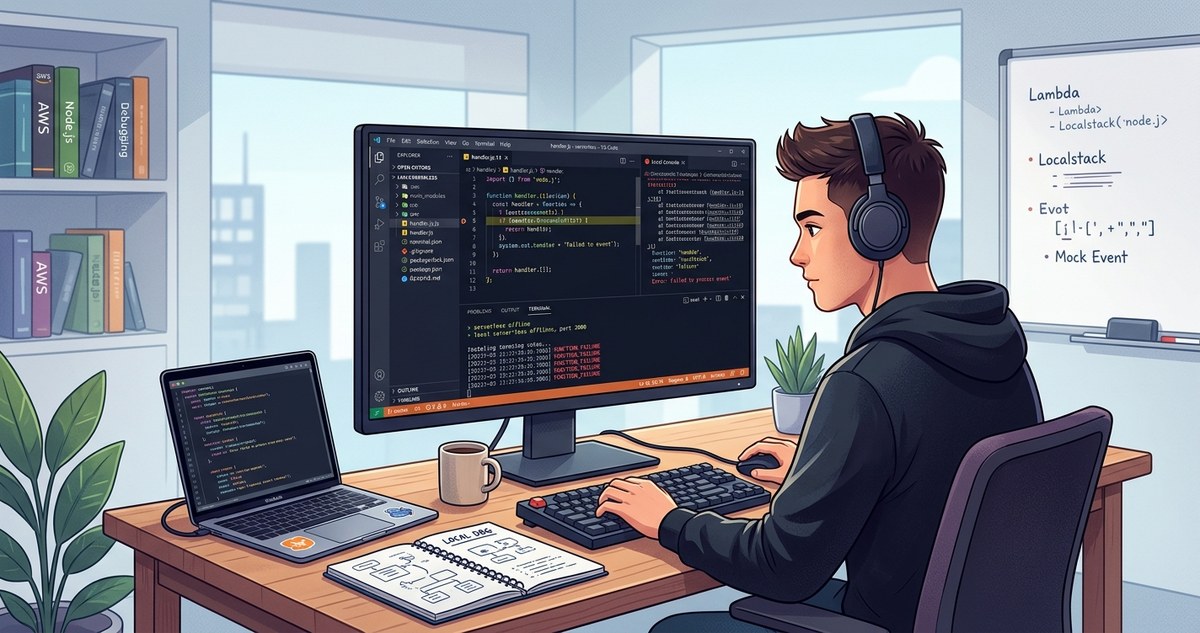
When your serverless function fails in production and you have zero access to cloud logs, the panic is real. You cannot SSH into a container. You cannot tail a log file. All you get is a vague timeout error and a customer waiting on the other end. That is the moment you realize how much you need a solid local debugging workflow. The good news is you do not need cloud access to fix most serverless errors. You can replicate the runtime environment right on your laptop and step through your code line by line. This guide will show you exactly how to debug serverless function errors locally so you can solve problems fast and keep your applications healthy.
Local debugging for serverless functions is your lifeline when cloud logging tools are unavailable. By using emulators like AWS SAM CLI or Serverless Offline, you can simulate triggers, inspect variables, and catch errors before deployment. Set breakpoints, watch step-through execution, and validate environment variables locally. You will reduce deployment cycles, save money on test invocations, and fix bugs in minutes rather than hours. Start with one service and apply the same pattern across your stack.
Why You Need a Local Debugging Workflow
Serverless architecture hides infrastructure complexity, but that same abstraction makes troubleshooting frustrating. When a Lambda function throws an error, you typically see a stack trace in CloudWatch or whatever log aggregator your provider uses. But what if you cannot access those logs? Maybe your account has restricted permissions, or the service is down, or you are working offline during a flight.
Local debugging shifts the feedback loop from minutes (deploy, wait, check logs) to milliseconds. You edit your code, set a breakpoint, and hit F5. The function executes in a container that mimics the production runtime, and you can inspect every variable, watch the event object, and step through async callbacks.
Beyond speed, local debugging helps you catch environment-specific issues early. Common problems like missing environment variables, incorrect IAM role assumptions, or mismatched Node.js versions become visible the moment you run locally. You can test with realistic event payloads before you ever hit the deploy button.
Tools That Make Local Serverless Debugging Possible
The ecosystem has matured a lot by 2026. Here are the primary tools you can use today to debug serverless functions locally:
| Tool | Provider | Key Features | Best For |
|---|---|---|---|
| AWS SAM CLI | Amazon | Local Lambda invocations, API Gateway emulation, step-through debugging with VSCode | Developers on AWS with complex event sources |
| Serverless Framework Offline | Serverless Inc. | Emulates API Gateway + Lambda, supports multiple runtimes, hot reload | Multi-cloud teams or those using the Serverless Framework |
| LocalStack | LocalStack GmbH | Full AWS service emulation (S3, DynamoDB, SQS) | Testing interactions between multiple services |
| VSCode + Debugger Extension | Microsoft | Breakpoints, watch variables, call stack inspection | Any developer who wants a unified editor experience |
| Docker + Custom Images | Community | Run your function inside a container with the exact Lambda runtime | Advanced users needing perfect parity |
Each tool has its strengths. If you use AWS SAM, you get first-party integration. If you prefer the Serverless Framework, its offline plugin is mature and widely used. For teams working with multiple cloud services inside a single function, LocalStack can save hours of mocking.
Step by Step: How to Debug a Serverless Function Locally
Let us walk through a practical example using AWS SAM CLI and VSCode. The same principles apply to other tools. Assume you have a Node.js 20 Lambda function that reads from an S3 bucket and writes to DynamoDB. The function times out in production, but you cannot see the CloudWatch logs.
1. Install the Required Dependencies
You need the following on your local machine:
– Docker (the SAM CLI uses it to spin up a Lambda-like container)
– AWS SAM CLI (version 1.80+ recommended)
– Visual Studio Code with the AWS Toolkit extension
– Your project code with a template.yaml file
# Verify installations
sam --version
docker --version
code --version
2. Configure a Debug Launch Configuration
Inside your VSCode project, create a .vscode/launch.json file. The AWS Toolkit extension can generate this for you. The configuration tells VSCode to attach the debugger to the SAM local invocation.
{
  "version": "0.2.0",
  "configurations": [
    {
      "name": "Debug Local Lambda",
      "type": "aws-sam",
      "request": "direct-invoke",
      "invokeTarget": {
        "target": "code",
        "projectRoot": "${workspaceFolder}",
        "lambdaHandler": "index.handler"
      },
      "lambda": {
        "runtime": "nodejs20.x",
        "memory": 256,
        "timeout": 30,
        "environmentVariables": {
          "TABLE_NAME": "MyLocalTable",
          "BUCKET_NAME": "my-local-bucket"
        }
      }
    }
  ]
}
3. Create a Test Event
SAM needs a JSON file that simulates the event that triggers your function. Create an events/ folder and add a file like s3-put.json:
{
  "Records": [
    {
      "s3": {
        "bucket": { "name": "my-local-bucket" },
        "object": { "key": "uploads/data.csv" }
      }
    }
  ]
}
4. Set Breakpoints and Start Debugging
Open your handler file (index.js, for example). Set breakpoints on lines where you suspect the error occurs. In VSCode, click the left gutter next to the line number. Then open the Run view, select the “Debug Local Lambda” configuration, and press the green play button.
The SAM CLI will build your function, start a Docker container, invoke it with the test event, and then pause execution at your breakpoint. You can inspect variables in the Debug sidebar, hover over expressions to see values, and step through the code.
5. Reproduce the Error
With the debugger active, step through each line. Look for:
– Missing environment variables (they will show as undefined).
– Promises that never resolve.
– Unhandled rejections in async code.
– Wrong event payload structure.
– Timeout due to a long database query.
In our example, the timeout might be caused by an infinite while loop or a network call to a service that does not exist locally. The debugger will show you exactly where the execution hangs.
Common Mistakes When Debugging Locally (and How to Avoid Them)
Even with a great setup, developers slip up. Here is a table of typical pitfalls and their fixes:
| Mistake | Why It Hurts | How to Fix |
|---|---|---|
| Forgetting to mock external services | Your function calls a real DynamoDB table that does not exist locally | Use LocalStack or a dockerized DynamoDB instance; set environment variables to point to local endpoints |
| Using the wrong runtime version | Node.js 18 vs 20 can behave differently, especially with built-in modules | Match the Runtime property in your template.yaml to your production config |
| Not refreshing the Docker image | SAM caches the image; you may debug against old dependencies | Run sam build and sam sync to rebuild the container |
| Environment variable typos | A missing variable causes silent fallback to defaults | Print all env vars in the debugger console (process.env) at startup |
| Ignoring execution role permissions | Local SAM uses your AWS credentials; IAM policies might not be applied | Add local overrides in template.yaml under Globals or Policies |
Pro Tips for a Smoother Local Debugging Experience
- Use a consistent event generator. Write small scripts in a
events/folder for each trigger type. That way you can replay the exact scenario. - Keep your
template.yamlclean. Define environment variables underEnvironmentin the function resource so SAM picks them up automatically. - Add a
--warm-containersflag when debugging repeatedly. This prevents SAM from creating a new container each time, saving 5-10 seconds per run. - If you use the Serverless Framework, install
serverless-offlineand set breakpoints with the--debugflag. The VSCode plugin for Serverless Framework also works well. - Combine local debugging with unit tests. Write a test that invokes your handler with a mock event. When the test fails, attach the debugger to the test runner.
“The biggest win from local serverless debugging is not just finding bugs faster, but understanding how your function behaves under different conditions without risking production data.”
* Kay Ploesser, serverless architect and author of debugging tutorials
When Local Debugging Falls Short
Local debugging is powerful but not perfect. It cannot replicate every cloud service nuance, like cold starts with specific Lambda extensions or IAM policy evaluation across multiple accounts. If your error is tied to network latency, DNS resolution, or a third-party API that only exists in production, you might need some cloud access. In those cases, combine local debugging with structured logging and error capturing. For deeper reading, check out Common JavaScript Debugging Tricks Every Developer Should Know and Why Your Production Errors Don’t Show Up in Local Development.
Build a Debugging Habit That Sticks
Local debugging is a skill, not a one-time setup. The next time you encounter a serverless function error, resist the urge to deploy a quick fix with added console.log statements. Instead, open your project, start the SAM CLI, and set a breakpoint. That ten-minute investment will save you from repeated deployments and frustrated users.
You also want to keep your local environment in sync with production. Use the exact runtime, set the same memory limits, and test with realistic payloads. Over time, you will develop an intuition for what breaks and where.
Remember: every error you debug locally is one you do not have to chase in the cloud. And when you do need to troubleshoot more complex scenarios, techniques like mastering debugging strategies for frontend JavaScript errors and troubleshooting API response errors in web applications can complement your toolkit.
Start small. Pick one function that has been giving you trouble. Set up a local debugging session this week. Watch how a single breakpoint can reveal the root cause in seconds. Your future self will thank you the next time CloudWatch goes dark.